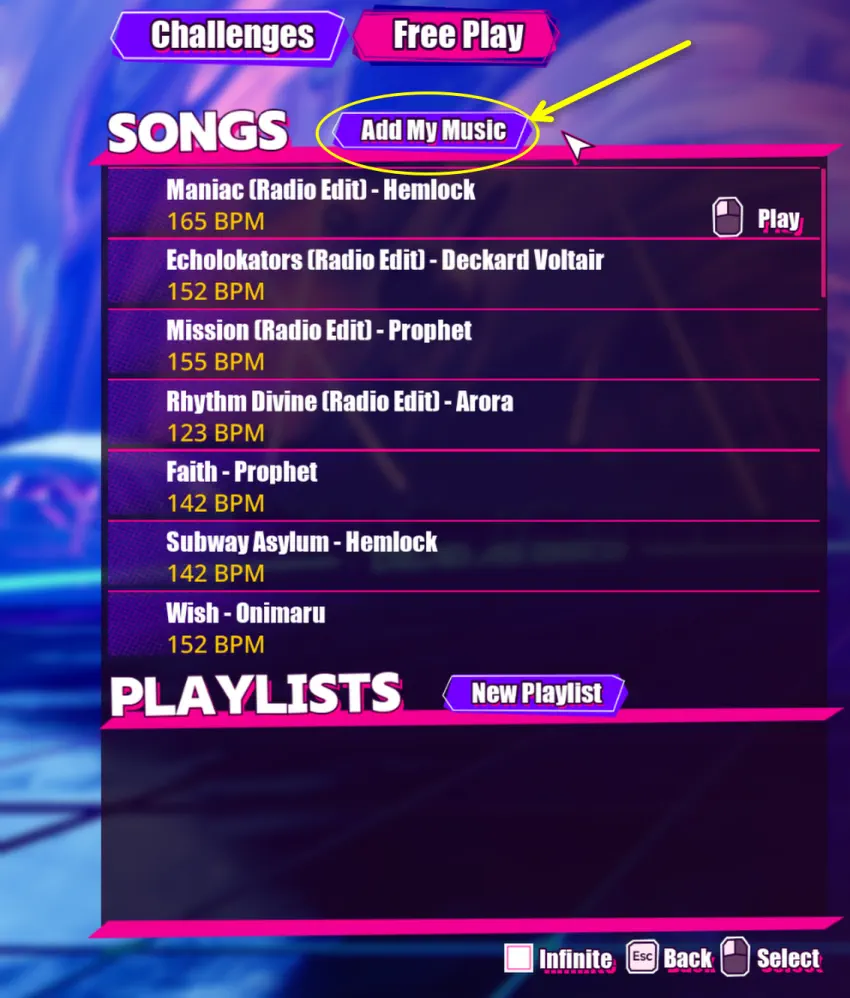
Dead as Disco custom music is added from Infinite Disco → Free Play → Add my music, then calibrated in Advanced Editor by setting the song’s BPM, lining up the beat offset, and trimming the start/end if needed. If the song drifts over time, the BPM is wrong or the track changes tempo, so a BPM section may be necessary.
The file format side is fairly flexible, but .mp3 and .opus are the safest choices for smaller files. You’ll also want a reliable way to check BPM before you start calibrating.
What you need first
Before importing anything, make sure you have:
- An audio file for the song
- A BPM source or analyzer
- A way to open the song in Dead as Disco’s editor
Recommended formats are .mp3 or .opus, mainly because they keep file sizes smaller. The game supports other audio formats too, but those two are the easiest place to start.
For BPM, the most practical options are:
- songbpm.com — quick database lookup, but not always accurate
- Tunebat — database lookup plus audio upload analysis
- beatsperminuteonline.com — manual tap-to-beat method
- ArrowVortex — desktop BPM analyzer for .mp3 and .wav files
If you want the most consistent result, I’d use a BPM analyzer that gives decimal values, then verify the track in-game with the metronome.
Add custom music in Dead as Disco
Windows
From the Stage Select screen, go to Infinite Disco.
Switch the top tab to Free Play and click Add my music.
The first time you do this, a pop-up may appear. It’s the same kind of EULA-style prompt the demo used, so just continue.
A file browser should open next. Pick the song you want to import.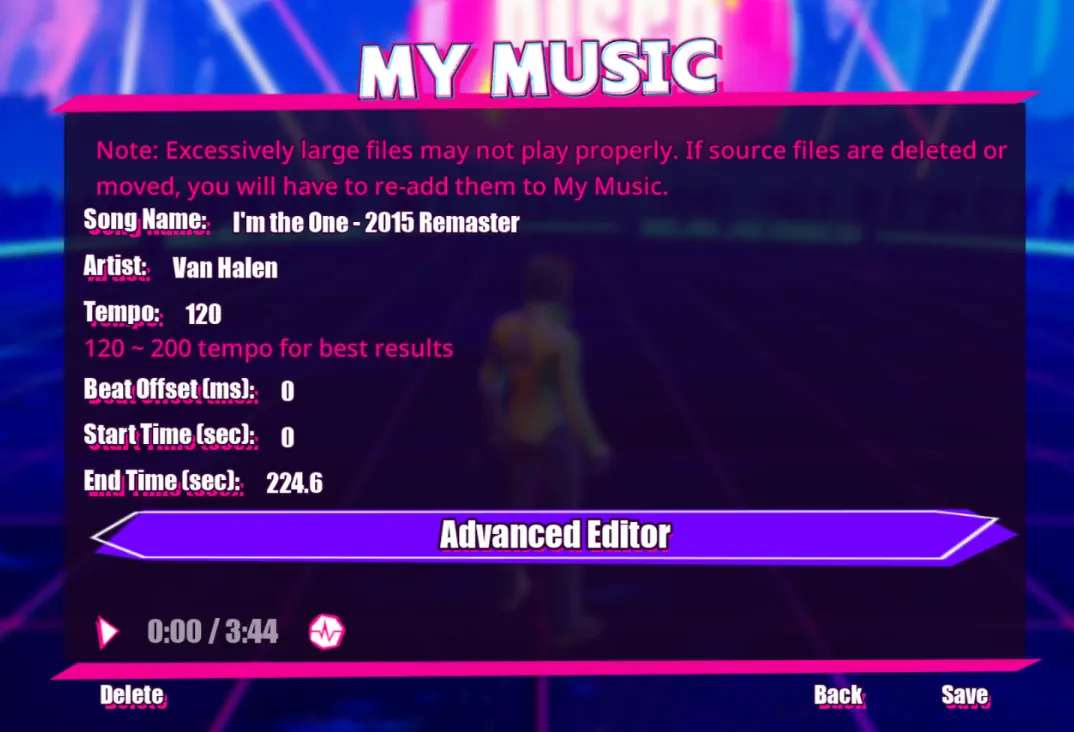
After the loading screen, the song editor opens with its parameters. Save the song from there so it is added to your list.
At this stage the track will usually be uncalibrated, because it still uses the default timing values.
Linux / Steam Deck
The default music folder path is:
/home/deck/.local/share/Steam/steamapps/compatdata/3404260/pfx/drive_c/users/steamuser/AppData/Local/Pagoda/Saved/MusicFiles/
You can also use a folder link if you want the music directory to live on an SD card or another location.
Once the files are in place, open Infinite Disco → Free Play → Add my music.
Again, you may get the same first-use pop-up. Continue through it, then select the file from the list and save it.
Transfer songs from Demo to Early Access
If you imported songs in the demo, they can be moved over manually.
Current Early Access imports are stored here:
/home/deck/.local/share/Steam/steamapps/compatdata/3404260/pfx/drive_c/users/steamuser/AppData/Local/Pagoda/Saved/ImportedSongs/
Demo imports are stored here:
/home/deck/.local/share/Steam/steamapps/compatdata/3763830/pfx/drive_c/users/steamuser/AppData/Local/Pagoda/Saved/ImportedSongs/
Copy or move the songs from the demo folder into the Early Access folder, then use Reload Directory if the game does not detect them right away.
For reference, here is a Linux file path example:
/home/m4jkus/.local/share/Steam/steamapps/compatdata/3404260/pfx/drive_c/users/steamuser/AppData/Local/Pagoda/Saved/ImportedSongs/
Getting the BPM
There are a few solid ways to find a song’s BPM:
songbpm.com
- Good for quick lookups
- Best for common tracks
- Can be wrong, so do not treat it as final proof
Tunebat
- Useful because it includes an analyzer
- You can upload the audio file and let it estimate the BPM
beatsperminuteonline.com
- Manual tap-to-beat site
- Useful when database results disagree
- Works on the same principle as Dead as Disco’s calibration tools
ArrowVortex
- Windows app, or usable on Linux with Wine
- Supports automatic BPM analysis from .mp3 or .wav
- Open the file, then use Shift+S and choose Find BPM
ArrowVortex is the method I’d start with if accuracy matters, because it can give you decimal BPM instead of forcing a rough whole-number guess.
Set BPM and beat offset
Hover over the imported song in the list and press E on keyboard, or use Start on controller.
From the song window, open Advanced Editor. That is where BPM and timing can be adjusted in one place.

Enter the song’s BPM in the Tempo field.
If the value seems too high or too low, try doubling or halving it first. That will not break sync by itself, and it often solves common BPM analyzer mistakes.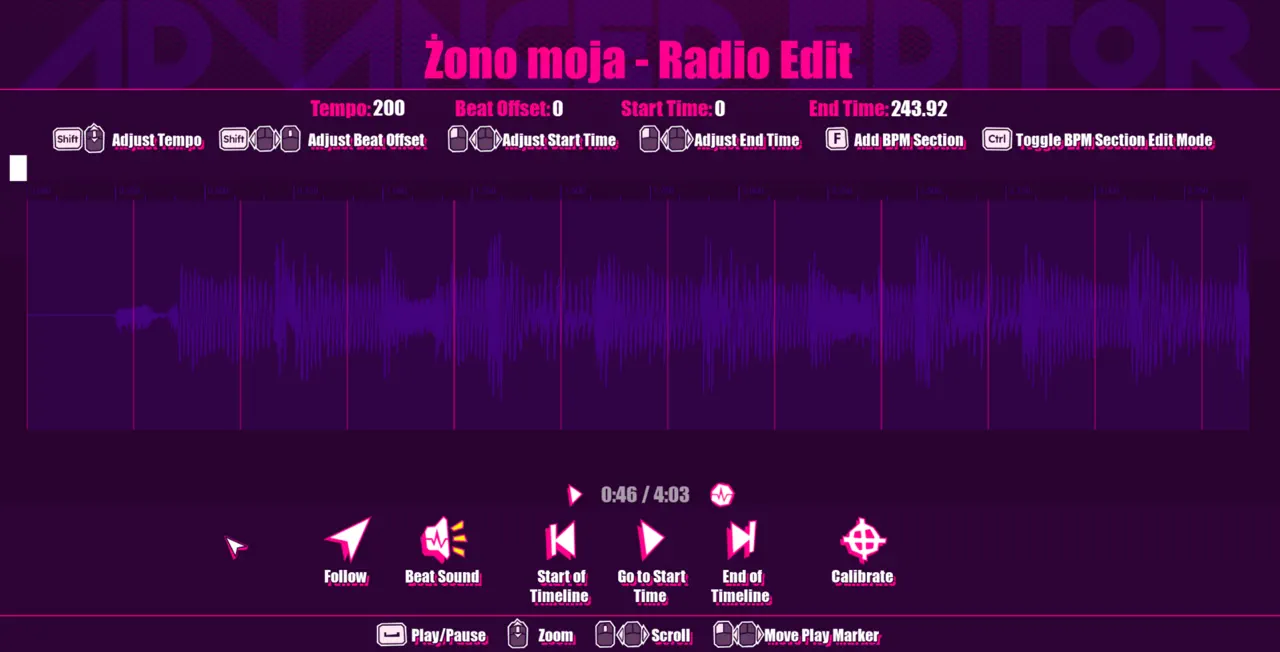
You should now see the editor screen with the waveform and timing tools. The important controls are the ones you’ll use for lining up the track.


The editor can follow the playhead, which makes it easier to move through the song while adjusting timing.
Now focus on beat offset.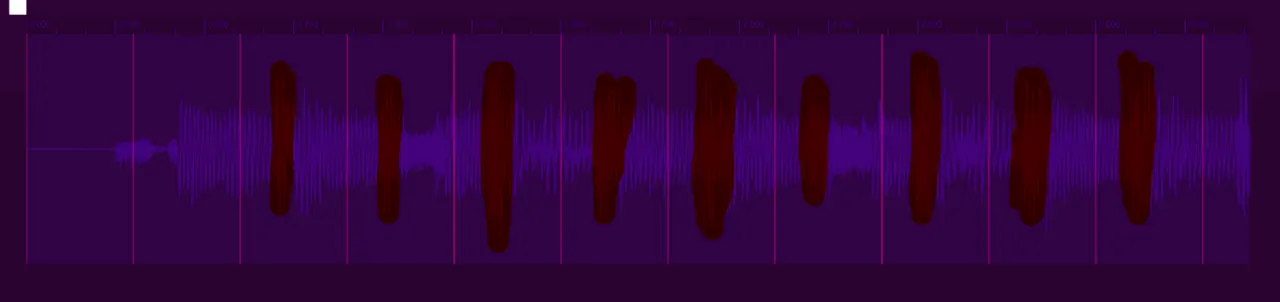
Your goal is to line up the pink beatlines with the peaks in the waveform. Those peaks usually mark the musical beat.
To move the beatlines:
- Hold Left Shift
- Hold Middle Mouse Button
- Drag the timing until the beatlines sit on the waveform peaks
If your mouse cannot use middle-click, adjust the offset value manually instead.
After that, use the metronome button and listen carefully. If the metronome clicks in time with the song, the calibration is close enough to save.
When it sounds right:
- Click Save and Exit
- Then click Save on the edit screen

A few calibration rules that matter
- Zoom in before making fine adjustments. It is much easier to read waveform peaks that way.
- If the beatlines drift over time, the BPM is wrong or the song changes tempo.
- If the song changes tempo, you will need a BPM section instead of relying on one constant BPM value.
Start and end trimming
Start and End values let you trim the beginning or end of a song.
Use them to:
- Cut out a long intro
- Remove an awkward outro
- Improve looping for playlists
You can change the values by typing the number of seconds or by dragging the white boxes.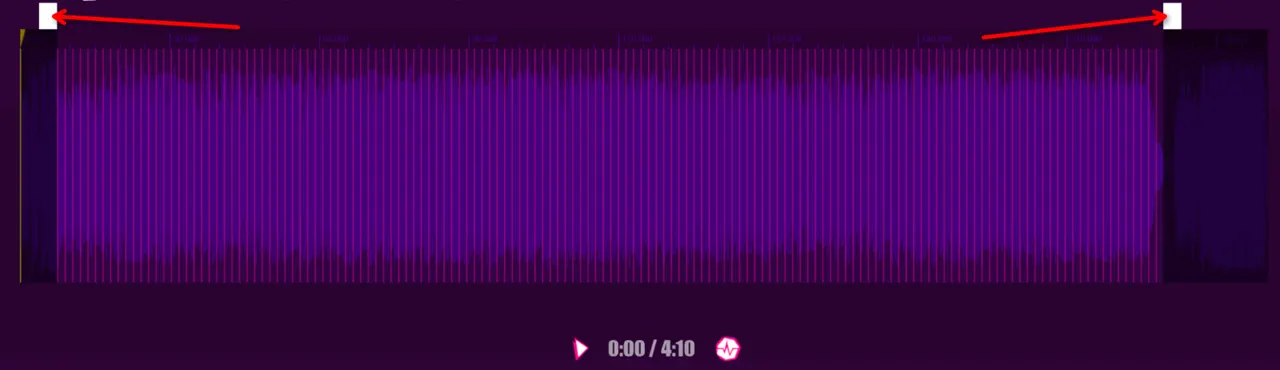
If you change Start or End, the Beat Offset updates automatically. That is normal, and it should not de-sync the song by itself.
Add a BPM section for tempo changes
If the track changes BPM, you need to place a new BPM section where the change happens.
A good way to verify the changed timing is to check the song against an external source that lists BPM at specific points, such as Songsterr for certain tracks. Use the values only if they match the actual audio.
To add BPM sections in Dead as Disco:
- Press F to add a BPM section
- Press Ctrl to toggle Section Edit mode
- Use Section Edit mode to move BPM sections into the correct place
- Press Ctrl again to return to normal playhead behavior
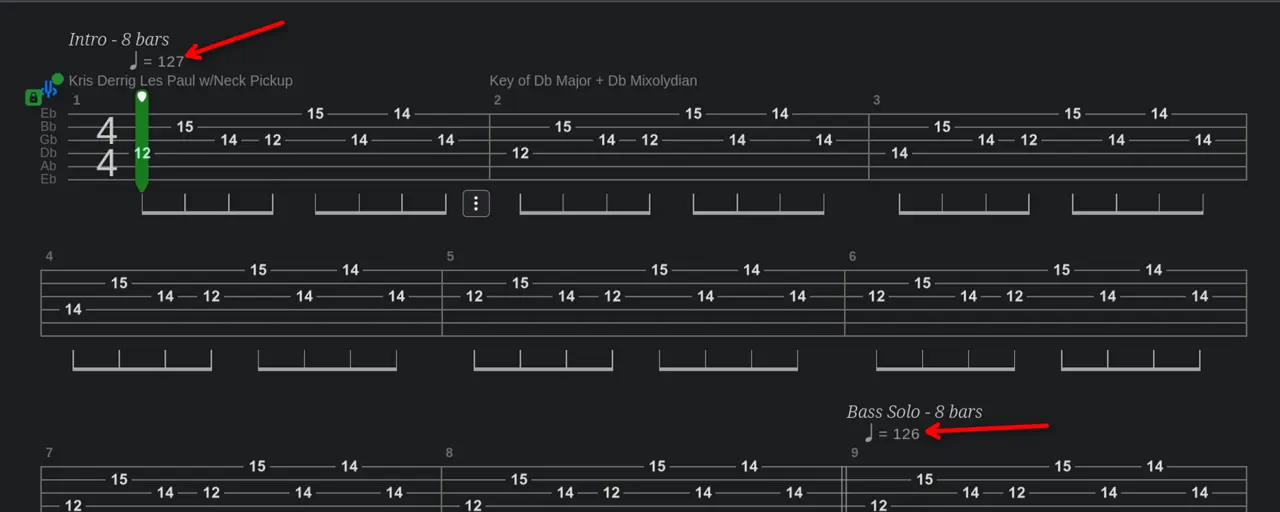
The important part is placement. A correct BPM value in the wrong timestamp will still throw the chart off.
Troubleshooting custom tracks
Song is corrupted or will not remove from the list
If a song gets corrupted and the game will not remove it cleanly, delete it manually from the import folder.
On Windows, open %localappdata% and look for:
Pagoda/Saved/ImportedSongs
Delete the broken import from there.
Song will not import correctly
A codec issue is the most likely cause. If the file refuses to import or behaves strangely, open it in Audacity and export it again. Re-exporting usually strips the problematic codec layer.
Missing folders on Linux or Steam Deck
If a required folder is missing, create it manually.
If the entire 3404260 folder is missing for Early Access, make it and then verify the game files. In some cases, reinstalling may also be necessary.
At the time of writing, some of these issues may already be fixed, but the manual folder and re-export fixes remain the first things worth trying.